How to Change the Login Password for Windows Account on PC (Hong-Kong version)?

Last Update date : Jan 28. 2026

Important Note: The information on this page is for Hong Kong products only. Models, sequences or settings will vary depending on location and/or where the product had been purchased. To be redirected to your local support page please click here.

You can change the login password when Windows boots.
Follow the steps below to change a password.

1 Click the Start button on the taskbar and then click [Settings].
windows 10, change password, login, log-in, settings, samsung computers, pc, notebook, netbook, tablets
2 Click [Accounts].
accounts, passwords, change password, windows 10, settings, login, log-in, samsung pc, computers, netbook, tablets, notebook
3 Click [Sign-in options].
sign-in options, sign in, login, log-in, windows 10, samsung computers, pc, notebook, tablets, netbook, settings
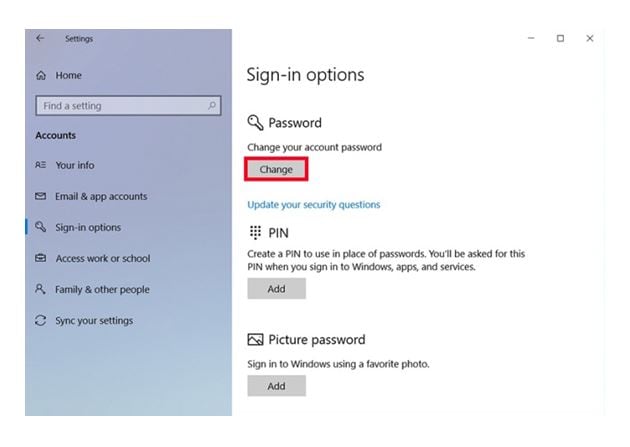
4 Under [Password], click [Change].
change password, sign-in options, sign in, windows 10, settings, samsung notebook, pc, computers, netbook
5 Enter your current login password and then click [Next].
change password, windows 10, login password, windows 10, sign-in, sign in, samsung, pc, computers, notebook, laptop, netbook,
6 Enter the new password you want to use and a hint for it and then click [Next] to change your password.
※ If you click [Next] without entering anything, your login password will be deleted.
enter, new password, hint, change password, login password, windows 10, sign-in, login-in, sign in, log in, samsung pc, computers, tablets, notebook, netbook
7 You can also login using a PIN rather than a password.
You can also login using a PIN rather than a password, windows 10, change password, use pin instead of password, login, signin, log-in, sign-in, log in, sign in, options, settings, set pin, pin

- The above product description is only applicable to the Windows 10 on Samsung computers (Hong-Kong version) in year 2018. The above product description was updated in July 2018 and for reference only.

- Windows is either registered trademark or trademark of Microsoft Corporation in the United States and/or other countries. All other products and services mentioned may belong to their respective trademark owners.

- Images are for reference only.

If the above information does not match what your product is showing, you may check the User Manual for your product. If you are unable to solve the problem, please contact us for further assistance.

Thank you for your feedback!

RC01_Static Content : This text is only displayed on the editor page