Connect Samsung Gear VR Controller via Bluetooth
Important Note: The information on this page is for Hong Kong products only. Models, sequences or settings will vary depending on location and/or where the product had been purchased. To be redirected to your local support page please click here.
You can connect the controller via Bluetooth only on mobile devices running Android 6.0 or higher.
If you cannot connect the controller via Bluetooth, please connect it with the Gear VR app called Oculus.
Connect by Bluetooth
1. Press and hold the controller's Home key to enter Bluetooth pairing mode
The indicator light will flash red, green, and blue.
2. After activating your mobile device's Bluetooth feature, please tap Gear VR Controller (0000) on the list of available devices to complete Bluetooth pairing.
The indicator light will flash blue three times.
Note: The PIN for the controller is the four-digit number in parenthesis displayed on the mobile device’s Bluetooth settings screen. The number differs depending on the controller.
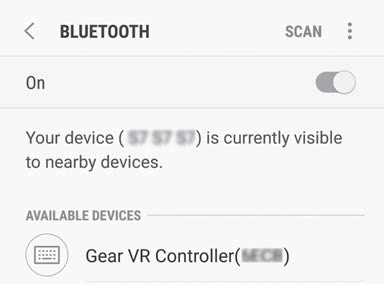
3. Reconnect your mobile device to the Gear VR and place the Gear VR on your head
Control the Gear VR with the controller's keys and touchpad
Connect with Oculus
If you cannot connect the controller via Bluetooth, please connect it with the Gear VR app called ‘Oculus’.
1. Press and hold the controller's Home key to enter Bluetooth pairing mode
The indicator light will flash red, green, and blue.
2. On the Gear VR app (Oculus), tap  and select the controller menu to connect the controller
The indicator light will flash blue three times.
Note: The way for connecting the controller can be changed depending on the Oculus service.
3. Reconnect your mobile device to the Gear VR and wear the Gear VR
Control the Gear VR with the controller's keys and touchpad
The Screen Image is for reference only.
If the above information does not match what your product is showing, you may check the User Manual for your product. If you are unable to solve the problem, please contact us for further assistance.
Thank you for your feedback!
Please answer all questions.
RC01_Static Content : This text is only displayed on the editor page