How to change themes and icons on your Galaxy phone?
How to
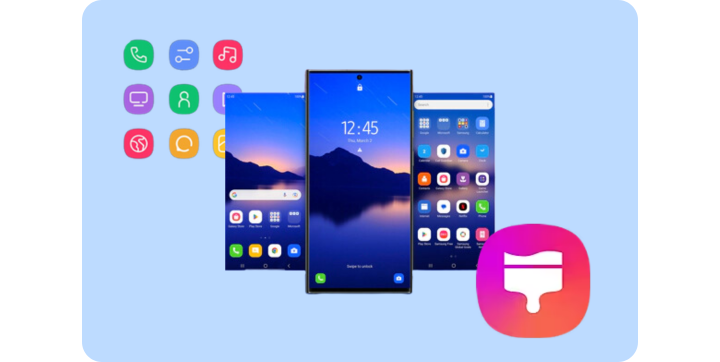
Your Galaxy phone comes with various Galaxy Themes that allow where you to change the overall theme, wallpaper, and icons. If you're tired of the default themes for your phone, simply decorate them with themes and icon styles that suit your taste. Check out the guide below to customize your phone theme using Galaxy Themes.

Download themes.
Themes allow you to apply a design of your choice to your device, from wallpapers and icons to default applications such as Phone, Messages, and Calendar. You can express your personality through the various choices!
1.- From a Home screen, touch and hold an empty area, and then tap Themes.
2.- If it's your first time using Themes, read the information, and then tap Continue or Agree.
3.- Swipe up to view the available themes and then select the one you want to download.

4.- Tap Download if it's a free theme, or tap the price (such as $0.99) if it's a paid theme.
5.- For paid themes, you can choose between Select payment method or Use discounts. If needed, enter your payment information. Then, tap Pay now to confirm.
You can also tap Download trial for paid themes if you'd like to test it out first. You can only update a theme if the seller or creator of the theme has released an updated version.
Change your theme.
1.- From a Home screen, touch and hold an empty area, and then tap Themes.
2.- To view all your themes, tap Menu (the three horizontal lines), then tap My stuff, and then tap Themes.

3.- Select your desired theme, view the details, and then tap Apply.
4.- If needed, tap Apply one more time to confirm.
When applying a theme to an app, keep in mind that some apps will only be able to match a dark or light theme. To change the app theme, open the app and navigate to its Settings. The options will vary; look for options that allow you to change the display, screen, or theme.
For Samsung Internet, you will need to select Webpage view and scrolling in the Settings menu. For Chrome, you will need to select Theme in the Settings menu.
Want to show off your passion for your favorite hobby? Try customizing your device by downloading new icons.
1.- From a Home screen, touch and hold an empty area, and then tap Themes.
2.- Tap Icons, swipe up to view the available icons, and then select the one you want to download.

3.- Tap Download if it's a free icon set, or tap the price (such as $0.99) if it's a paid icon set.
4.- For paid icon sets, you can choose between Select payment method or Use discounts. If needed, enter your payment information. Then, tap Pay now to confirm.
Maybe you're a little tired of those icons. If you want to change your icons and already have another set downloaded or saved, just follow these steps to apply it.
1.- From a Home screen, touch and hold an empty area. Tap Themes.
2.- To view all of your icons, tap Menu (the three horizontal lines), then tap My stuff, and then tap Icons.

3.- Select your desired icons, and then tap Apply.
4.- If needed, tap Apply one more time to confirm.
Delete themes.
Oops, you downloaded the wrong theme by mistake. Just delete it; it's no trouble at all.
1.- From a Home screen, touch and hold an empty area, and then tap Themes.
2.- Tap Menu (the three horizontal lines), and then tap Purchased items.
3.- Tap Delete (the trash icon) in the upper right corner and select the theme or themes you'd like to remove.

4.- Tap Delete at the bottom to confirm.
Delete icons.
If you change your mind, you can delete icons any time you want.
1.- From a Home screen, touch and hold an empty area, and then tap Themes.
2.- Tap Menu (the three horizontal lines).
3.- Tap Purchased items, and then tap Icons.
4.- Tap Delete (the trash icon) in the upper right corner and select the icons you'd like to remove. Tap Delete at the bottom to confirm.

Recover purchased themes.
No one wants to pay twice for the same thing. If you connect your device to a Samsung account, you can recover purchased items, even if you purchased them on another device.
1.- From a Home screen, touch and hold an empty area, and then tap Themes.
2.- Tap Menu (the three horizontal lines), and then tap Purchased items.
3.- Tap Download next to the theme you want to recover on your phone. You can repeat this process as many times as needed.

Your device offers a color palette that will match your current wallpaper’s colors. You can also choose custom colors.
1.- Navigate to and open Settings, and then tap Wallpaper and style.
2.- Tap Color palette, and then tap the switch next to Color palette to turn it on.

3.- Select your desired palette under Wallpaper colors, or tap Basic colors to choose a solid color. You can swipe left for more options.
4.- The previews at the top of the screen will let you know how your palette will look.
5.- When you’re finished, tap Apply. The palette will be applied to menus and screens. You can also tap the switch next to Apply palette to app icons.
Note:
Device screenshots and menus may vary depending on the device model and software version.

Thank you for your feedback!
Please answer all questions.
Contact Info
WhatsApp
![WhatsApp]()
![WhatsApp]()


Monday to Sunday
8:00 a.m. a 12:00 a.m.
LiveChat
![LiveChat]()
![LiveChat]()


Monday to Sunday
8:00 a.m. a 12:00 a.m.
Online
Call
Costa Rica: 00-800-1-726-7864
Ecuador: 1-800-72-6786
El Salvador: 800-0726-7864
Guatemala: 1-800-299-0033
Call
Honduras: 800-2791-9111
Jamaica: 1-800-726-7864
Nicaragua: 001-800-5077267
Panama: 800-0101
Call
Puerto Rico: 1-800-682-3180
Trinidad and Tobago: 1-800-726-7864
Venezuela: 0-800-100-5303
Dominican Republic: 1-800-751-2676